Frequently asked questions
What is CodeB?
CodeB Sovereign Communications is a self-hosted platform from Aloaha Limited that combines identity, European Digital Identity Wallet support, telephony and Voice AI in one stack. The platform is made up of nine integrated products that can be run next to systems you already own, such as FRITZ!Box, Asterisk, FreePBX, carrier SIP or Teams Direct Routing, or used as the foundation for a new service. The www.aloaha.com homepage itself runs on the production tenant.
Who makes CodeB?
CodeB is built and operated by Aloaha Limited, a Malta-registered company that has shipped signing, PKI and secure communications software since 2003. Aloaha Limited runs CodeB in production as the daily phone and meeting platform for its own team. Emails to info@aloaha.com are answered by the people who write the code.
Which products are in the CodeB line?
The CodeB line has nine products: CodeB Credential Provider V2 for Windows logon, an OpenID Connect and Passkeys identity provider, a European Digital Identity Wallet verifier, Voice AI and PBX, a sovereign Session Border Controller, Team Chat, a Business Intelligence property management system, a Remote Signature Service and the ZUGFeRDPro e-invoicing SDK. Customers can take one product or all nine.
Can I self-host CodeB?
Yes, CodeB is designed to be self-hosted on your own IIS and bridge install, and it runs in air-gapped networks. Aloaha Limited also offers hosted tenants under your own subdomain or under codeb.io or aloaha.com. Every tenant is isolated with its own users, trunks, admin console and data on disk.
Does CodeB keep my data inside my own infrastructure?
Yes. According to Aloaha Limited, phone calls, identity sign-ins and Windows logon events stay on your server, with no US analytics SDK and no third-party CDN. The AI Voice Engine is pluggable: local TTS auto-reply ships by default with no cloud at all, and the real-time AI Voice Engine is selected per tenant by the operator, either local or a cloud provider of your choice.
Is CodeB GDPR, NIS2 and DORA aligned?
CodeB is described as aligned with NIS2, DORA, CRA and GDPR, and designed around the EU Cyber Resilience Act (Regulation 2024/2847), NIS2 and DORA from the first commit. Aloaha Limited publishes an RFC 9116 security.txt and documents its vulnerability handling. Aloaha Limited is Malta-registered and EU-hosted.
Does CodeB use tracking or analytics?
No. The CodeB site and platform are described as having zero tracking pixels, zero analytics SDKs and zero third-party CDN. The public site is EU-hosted by Aloaha Limited in Malta.
What is CodeB Credential Provider V2?
CodeB Credential Provider V2 replaces the Windows password tile through the documented Credential Provider Filter interface. The product supports NFC, TOTP, PKI smartcards and USB tokens as a second factor or for fully passwordless logon, is 100% managed .NET, and FIPS 140-2 can be enforced by Group Policy. Credential Provider V2 supports Windows 8 through Server 2025, has no cloud and no telemetry, and runs in air-gapped networks.
Can CodeB be my OpenID Connect identity provider?
Yes. CodeB includes a self-hostable OpenID Connect identity provider for Nextcloud, WordPress, Grafana, GitLab, Teams, AWS, Azure or your own apps. The IdP supports Passkeys (FIDO2 / WebAuthn), magic-link sign-in, per-tenant RS256 keys, PKCE-only flows, RFC 7662 introspection, RFC 7009 revocation and RP-Initiated Logout. The server never sees plaintext passwords.
Does CodeB support the European Digital Identity Wallet?
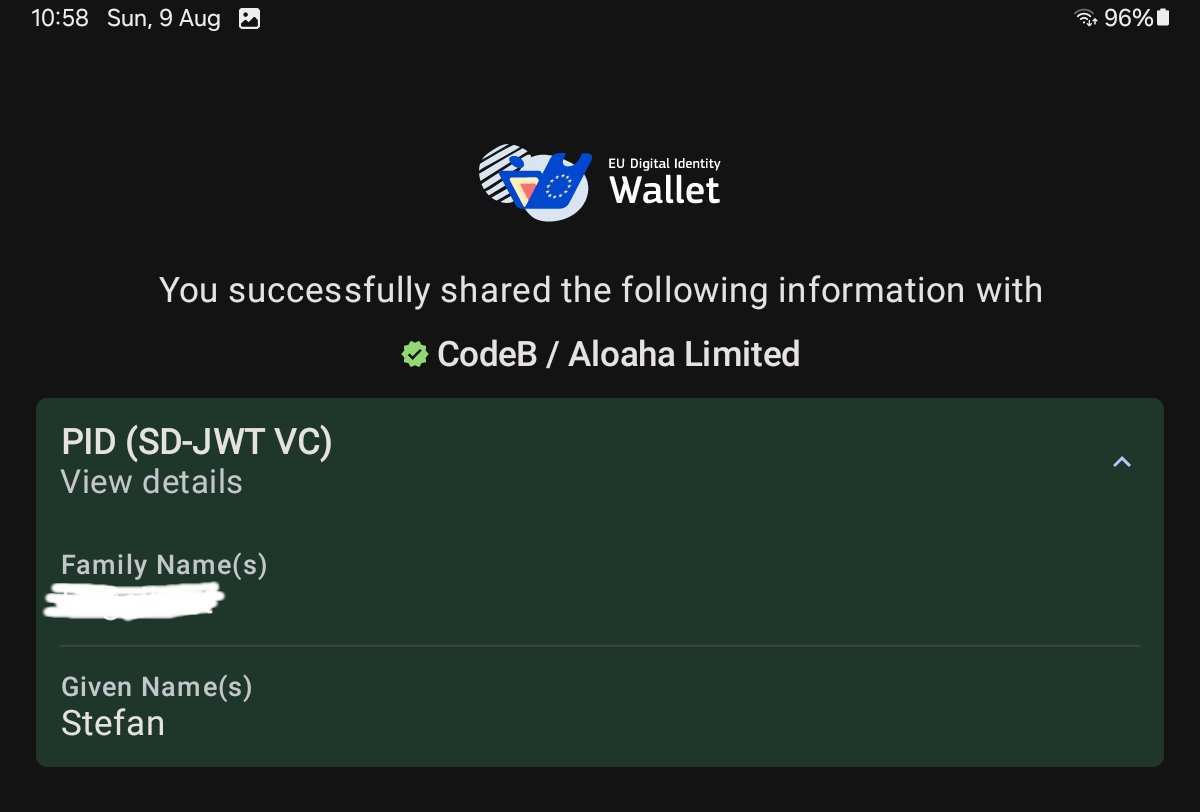
Yes. CodeB includes a self-hostable European Digital Identity Wallet verifier based on OID4VP 1.0, HAIP 1.0 and SD-JWT VC, live on www.aloaha.com. The verifier can be used for sign-in, account recovery, onboarding, KYC and age gating. Government-issued Personal Identification Data (PID) remains reserved for Member State-notified providers; CodeB is the verifier and relying-party integration.
What can CodeB Voice AI do?
CodeB Voice AI is a programmable, self-hosted voice AI on browser and SIP. Features include per-number persona prompts, real-time multilingual conversations, scheduled outbound campaigns with conditional retries, human transfer mid-call via SIP REFER, and transcripts and summaries emailed after every call. Calls can be started through a REST API with HMAC-signed webhooks, the AI engine is pluggable, and a local TTS fallback answers if the engine is unreachable.
Do I have to replace my existing phone system to use CodeB?
No. CodeB can run next to FRITZ!Box, Asterisk, FreePBX, carrier SIP or Teams Direct Routing, or replace those pieces on your own timeline. The CodeB sovereign SBC sits in front of your PBX or carrier trunk and handles SIP normalisation, NAT traversal, TURN and WebRTC to SIP gatewaying. You bring your own SIP carrier.
Can I make phone calls from a web browser with CodeB?
Yes. CodeB offers three browser softphones: the native CodeB Office webphone, a SIP.js softphone and a JsSIP softphone. The SIP.js and JsSIP options use SIP over WebSocket per RFC 7118 and keep credentials in the browser's localStorage. All three are installable PWAs and route calls to extensions, AI agents, virtual numbers and external destinations the same way.
Does CodeB include team chat?
Yes. CodeB Team Chat provides direct messages, group channels and file sharing up to 20 MB, served from your own install and isolated per tenant. Messages are delivered in real time over WebSocket with a poll fallback, and senders are OIDC-authenticated. A WhatsApp Business Cloud API connector lets a team reply to WhatsApp customers from the same interface.
Can CodeB sign PDF documents?
Yes. The CodeB Remote Signature Service signs PDFs from a browser or a backend using a Cloud Signature Consortium (CSC) v2 API, producing PAdES-B-T signatures with an RFC 3161 trusted timestamp. The service is Advanced Electronic Signature (AdES) scope with self-signed keys today, not Qualified Electronic Signatures (QES); the design is intended to accept a QSCD connector as a future upgrade.
Does CodeB support e-invoicing such as ZUGFeRD and XRechnung?
Yes. The Aloaha ZUGFeRDPro SDK creates and reads EN 16931-conformant ZUGFeRD, XRechnung and Factur-X invoices and reads UBL / PEPPOL. The SDK runs on-premise with COM, .NET, command-line and Web Services interfaces, so invoice data never leaves your process. Aloaha positions the SDK for the German 2025-2028 e-invoicing mandate and EU ViDA.
How much does CodeB cost?
CodeB is free during the preview, with a 30-day no-limits grace period and early-adopter pricing locked in. A free evaluation tenant needs no card, no contract and no auto-billing. Licensing and hosting options are listed on the CodeB pricing page.
How do I get started with CodeB?
You can request a free live tenant in one of two ways. Path A: point an A record from your own subdomain at the CodeB IP and email Aloaha Limited. Path B: pick a name and Aloaha provisions a subdomain under codeb.io or aloaha.com. Either tenant is live within one business day; you can also try a meeting demo without signing up.
How do I contact Aloaha Limited about CodeB?
You can use the contact form, email info@aloaha.com, or call the office from the browser with one click over WebRTC during business hours CET. Aloaha Limited replies within one business day. For a Credential Provider evaluation key, add "eval key" to the email subject and a key is sent within 24 hours.