Sovereign identity · European Digital Identity Wallet · Voice AI · Self-hosted
Identity, wallets, telephony and Voice AI. One sovereign stack. Zero cloud lock-in.
Nine integrated products, one self-hosted platform. Hardened Windows logon, an OpenID Connect + Passkeys identity provider, a live European Digital Identity Wallet verifier and issuer, a new Business-Wallet for multi-employee firms, browser meetings + softphones, a programmable Voice AI layer, a sovereign SBC, a Remote Signature Service (CSC v2, PAdES-B-T with trusted timestamp) and the ZUGFeRDPro e-invoicing SDK (ZUGFeRD, XRechnung, Factur-X, UBL — ready for the German 2025-2028 mandate and EU ViDA). Bolted onto what you already own — FRITZ!Box, Asterisk, FreePBX, carrier SIP, Teams Direct Routing — or the foundation for a fresh service. NIS2 / DORA / CRA / GDPR aligned. Runs in air-gapped networks. This page itself is the production tenant.
In today’s IT landscape, ‘Plan A’ is surrendering your data to Big Tech, accepting vendor lock-in, and relying entirely on the public cloud. When the internet drops, your workforce is locked out.
We are CodeB. We are the sovereign, self-hosted Plan B. We give you back control of your keys, your communications, and your identity — and our systems keep running even when the internet doesn’t.
Your keys
Your communications
Your identity
LAN-fallback continuity
Air-gap-capable. FRITZ!Box, Asterisk, FreePBX, Teams Direct Routing next to it — not above it. NIS2 / DORA / CRA / GDPR aligned. EU-built.
Nine sovereign products, one integrated platform.
Ranked by where they create the most defensible value. Take one. Take all nine. Run them next to anything you already own — carrier SIP, Teams Direct Routing, FRITZ!Box, Asterisk, FreePBX — or replace those pieces piecemeal on your own timeline. On wide screens the tiles flow as a 3×3 grid; on tablet and mobile they collapse to two columns and then one.
01 · CodeB Credential Provider V2
Replace the Windows password tile.
The flagship of the CodeB line. Replaces the Microsoft password tile via the documented Credential Provider Filter interface — NFC, TOTP, PKI smartcards or USB tokens, as second factor or full passwordless. 100 % managed .NET. FIPS 140-2 enforceable by Group Policy. Windows 8 through Server 2025. No cloud, no telemetry, runs in air-gapped networks.
NFC, TOTP, PKI smartcards, USB tokens · second factor or fully passwordless
FIPS 140-2 enforceable by Group Policy
System Tray Edition · card-remove auto-lock
Tools Edition · standalone helpers, scriptable
Admin CLI · CSV-driven enrolment for hundreds of cards
Pairs with the CodeB IdP and EU Wallet verifier to extend Windows logon into single sign-on for your apps
A drop-in EU identity provider you can host yourself.
An OpenID Connect identity provider for Nextcloud, WordPress, Grafana, GitLab, Teams, AWS, Azure or your own apps — with Passkeys (FIDO2 / WebAuthn) and magic-links wired alongside. Per-tenant RS256 keys, PKCE-only flows, RFC 7662 introspection, RP-Initiated Logout. Server never sees plaintext passwords; the user's own device signs the assertion.
Accept verified EU Wallet credentials — today, in production.
One of the first self-hostable EU Digital Identity Wallet verifiers in operation. OID4VP 1.0, HAIP 1.0, SD-JWT VC. Live on this domain right now. Replace usernames and passwords with cryptographically verified European Digital Identity Wallet claims — SD-JWT VC + KB-JWT selective disclosure — for sign-in, account recovery, customer onboarding, KYC, age gating, healthcare attestations, public-sector portals. Government-issued Personal Identification Data (PID) remains reserved for Member State-notified providers; CodeB is the verifier / relying-party integration.
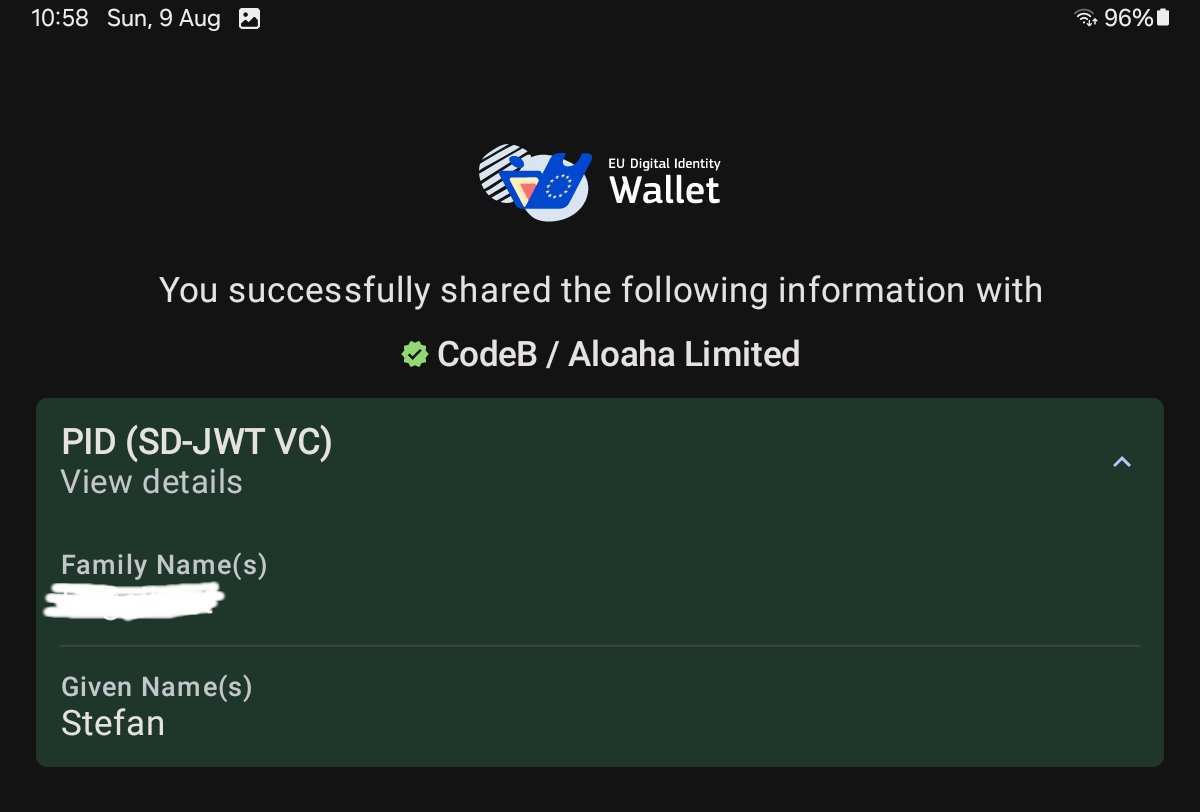
Live proof: the EU Reference Wallet on Android after a successful PID presentation to this verifier.Verified CodeB / Aloaha Limited badge is drawn by the wallet from the entry the EU registry holds against us. See the registration proof →
04 · Voice AI & PBX
Programmable, sovereign, carrier-independent Voice AI — not just an AI receptionist.
A self-hosted browser-and-SIP communications platform with a fully programmable Voice AI core. Per-number persona prompts, real-time multilingual conversations, scheduled outbound campaigns with conditional retries, human SIP transfer mid-call, signed transcripts and summaries emailed after every call, REST API initiation, HMAC-signed webhooks, pluggable AI engine, local TTS fallback, bring-your-own SIP carrier. WebRTC meetings + browser softphones + SIP gateway included.
Programmable Voice AI · per-vnum persona / prompt / voice / language
Outbound campaigns · scheduled, conditional retries, signed summary delivery
SIP REFER human-transfer mid-call · AI hands the caller to a hardphone or browser tab
REST v1 initiation + HMAC-signed webhooks · the AI is API-first
Pluggable AI Voice Engine · cloud or on-prem · local TTS fallback if the engine is unreachable
The identity-aware SIP/WebRTC layer between your apps and your telephony.
A self-hosted Session Border Controller folded into the same install as the meetings, identity and Voice AI. Sits at the boundary of your VoIP estate — in front of FRITZ!Box, Asterisk, FreePBX or your carrier trunk — and does the work classic SBC vendors sell as a standalone appliance, plus identity-aware policy that none of them ship. For telecom operators, CPaaS developers, white-label communications providers, companies embedding calls into portals, and vendors building specialist browser phones.
SIP normalisation, NAT traversal, integrated TURN (UDP / TCP / TLS) with ICE-Lite for hardphones
SIP-over-TLS (RFC 5630) for encrypted hardphone registration · per-trunk SDES SRTP (RFC 4568) on the carrier leg · persistent REGISTER-pinhole reuse (RFC 5626) so TLS phones survive NAT teardowns
Any-to-any voice interop matrix · WebRTC browsers, SIP-over-WebSocket softphones (sip-js / JsSIP), classic UDP phones (MicroSIP, Asterisk) and TLS-registered hardphones (Yealink) reach each other through one bridge with full SDP rewriting + media transcoding
The messaging layer that stays inside your tenant.
Direct messages, group channels and file sharing — all served by your own IIS / bridge install, per-tenant isolated, OIDC-authenticated. No third-party gateway ever sees the messages. Real-time delivery over WebSocket, poll fallback for restrictive networks, drag-and-drop uploads up to 20 MB, and an offline-catch-up email if a teammate has unread messages after 24 hours away.
Direct messages + group channels · per-tenant isolated under App_Data
Real-time WebSocket delivery · poll fallback works behind restrictive networks
File attachments up to 20 MB · drag-and-drop · images preview inline
OIDC-authenticated senders · identity clamped server-side, no spoofing
Offline catch-up email · if a user is offline ≥24 h with unread messages
Embeddable widget · drop "Chat with us" into any tenant page (visitor pairing via HMAC invitation)
Unified bubble · in-meeting chat and standalone chat share one visual style across every surface
Meeting archives · signed-in users get an auto per-day, per-room record of what they said in the room chat, browseable from chat.html (guests stay ephemeral)
Full REST + WS API · automate bots, hook into CRMs, script announcements
WhatsApp Business Cloud API connector · per-tenant Meta App credentials, HMAC-verified webhooks, media caching, appsecret_proof, and a shared “WhatsApp Inbox” group thread so your team replies to WhatsApp customers from the same UI as internal chat
Property Management System that publishes its own website — and uses your phone system.
A full PMS for short-let, holiday-let and hotel operators, running inside the same CodeB tenant as your phone system.
Real-time ops dashboard, revenue analytics, housekeeping, guest inbox and owner statements —
and the public-facing property website is a live rendering of the same inventory, no separate CMS.
Meet, Chat and Call are the CodeB comms you already know. Multi-tenant, OIDC-authenticated, EU-hosted.
Today dashboard · check-ins, check-outs, stay-overs, bookings, transactions · live
Sign PDFs from a browser or from your backend — PAdES-B-T with trusted timestamp.
A Cloud Signature Consortium (CSC) v2 signing service and a browser-side signing client, running on the same tenant as the rest of the platform.
Per-user signing certificates minted from your OIDC profile (Common Name, given name, family name, email), incremental save preserves prior signatures, RFC 3161 trusted timestamp from a configurable TSA, and full support for encrypted source PDFs (Standard V2 RC4-128 and V4 AES-128).
Advanced Electronic Signature (AdES) scope, self-signed keys today — the CSC v2 API surface and audit trail are designed to accept a Qualified Signature Creation Device (QSCD) connector for Qualified Electronic Signatures (QES) as a future upgrade, aligned with the European Digital Identity Wallet remote-signing patterns.
Cloud Signature Consortium v2 API subset — per-user credential list, SCAL2 authorisation with WebAuthn plus PIN, hash signing, full-document signing, RFC 3161 timestamp fetch
PAdES-B-B baseline — CMS signed attributes per ETSI EN 319 122-1, including signing-certificate v2 with issuer and serial binding
PAdES-B-T — RFC 3161 timestamp embedded in every signature; the timestamp authority is a per-install configuration knob
Per-user certificate lifecycle — every user gets their own EC P-256 signing key on first use, wrapped by the operating system key store; the certificate subject is populated from the OIDC profile (name, given, family, e-mail)
Incremental save preserves prior signatures — classic xref-table PDFs and xref-stream PDFs both supported (ISO 32000-1 §7.5.6)
Encrypted PDF support — signs source PDFs protected by the Standard security handler (RC4-128 and AES-128) without requiring decryption first
SCAL2 Signature Activation Data — short-lived signed authorisation bound to the document hash, with PIN and WebAuthn second factors verified server-side before the signature is released
Advanced Electronic Signature scope today — not QES yet, but the crypto module is pluggable so a certified HSM or QTSP backend can be swapped in on customer engagement
ZUGFeRD, XRechnung, Factur-X and UBL — on your own servers, in your own code.
The Aloaha ZUGFeRDPro SDK creates and reads EN 16931-conformant electronic invoices in CII syntax — ZUGFeRD, XRechnung, Factur-X — and reads UBL / PEPPOL as a bridge. On-premise COM + .NET + CLI + Web Services surface. Invoice data never leaves your process. Ready for the German mandate: receive since 2025-01-01, issue phased 2027-01-01 (turnover > EUR 800k) and 2028-01-01 (all businesses). France Factur-X 2026-09-01 receive / 2026-09-01 issue for large + medium, 2027-09-01 all. Italy SDI mandatory since 2019; Poland KSeF, Belgium PEPPOL 2026-2028. EU ViDA directive brings a common wire in 2030-2035.
Create ZUGFeRD / XRechnung / Factur-X XML in UN/CEFACT CII syntax
Embed the XML into existing PDF/A or generate a fresh PDF/A-3 from XML + Word template
Extract the XML back out of any received ZUGFeRD or Factur-X PDF, no OCR
Read UBL 2.1 / PEPPOL BIS Billing 3 into the same internal model — SDK acts as UBL→CII bridge
XAdES on the XML, PAdES + RFC 3161 timestamp on the wrapping PDF (via CodeB Signature Server)
COM interface for VB6 / VBA / classic ASP / MS Access / Navision / Delphi retrofit
.NET assembly (early and late binding) for C# / VB.NET / PowerShell / F# / modern ERP
Command-line tools for batch pipelines + Web Services for language-agnostic HTTP callers
OEM licence for ISVs embedding ZUGFeRD output into their own accounting / billing / ERP product
Standalone GUI + free ZUGFeRD PDF Viewer for exception-handling by accounting staff
Same audio quality. Same call routing — internal extensions, AI agents, virtual numbers, external destinations all work identically. Pick whichever matches how your team already works, or run all three side by side. All are installable PWAs.
A · Office (CodeB native)
Full-featured CodeB Webphone.
The default browser softphone for CodeB tenants. Click-to-call, meeting handoff, in-room chat, screen share, presence. Talks to the bridge over the CodeB signalling channel — no third-party SIP library to learn.
For teams that already use the SIP.js library or want a pure standards-based path. Speaks SIP over WebSockets directly to the bridge. Real 3×4 dialpad with DTMF. Credentials in your browser’s localStorage — never on our servers.
For teams that prefer the JsSIP library or already have integrations against it. Same RFC 7118 wire protocol, same dialpad UX, same browser-only credential storage. Pick whichever JS library your team already knows.
An operator-curated Access Control system gates every inbound INVITE and every outbound dial. CIDR + glob + per-tenant + private-IP bypass + auto-blacklist on brute-force. Toll fraud doesn't reach your trunk.
Built on published RFCs and OpenID / EUDI specifications, with minimal proprietary crypto glue. RFC 6749, 7009, 7517, 7523, 7662, 8414, 9101, 9116, 9309. OID4VP 1.0. HAIP 1.0. WebAuthn L3. SIP over UDP and TLS (SIPS, RFC 5630). No proprietary protocol, no lock-in.
No US analytics SDK. No third-party CDN. The phone calls, the identity sign-ins, the Windows logon events — all stay on your server. The same binaries you run, you can audit. The AI Voice Engine is pluggable: local TTS auto-reply ships by default (no cloud at all); the real-time AI Voice Engine is operator-selected per tenant (local or your chosen cloud provider) so the data-path choice is yours.
NIS2 · DORA · CRA aligned by default.
Designed around the EU Cyber Resilience Act (Reg. 2024/2847), NIS2 and DORA from the first commit. Secure-by-default, vulnerability handling documented, security.txt published, atomic file writes with rolling backups everywhere.
Standards over lock-in. Always.
Every protocol we speak is RFC, W3C, OIDF or ISO. Every API is documented and curl-able. Every integration is BYO-anything: bring your own SIP trunk, your own AI engine, your own SMTP, your own IdP — or use ours. Walk away anytime.
One team. One product line. Real humans.
You email info@aloaha.com, you get a reply from the people who write the code. Aloaha Limited has shipped signing, PKI and secure communications software since 2003 — and dogfoods every product in production.
Your own free live tenant
Try it on your own domain. Free. In production.
Conference, Phone bridge, Voice AI and the OIDC + EU Wallet identity stack are fully multi-tenant. Every customer gets their own isolated tenant — their own users, their own trunks, their own admin UI, their own data on disk. Free to evaluate, live, on infrastructure you can verify.
Path A · You point the DNS
Bring your own subdomain.
Point an A record from your subdomain (e.g. phone.yourcompany.com) at our IP, then email us. We light up your tenant inside one business day — your domain, your Let's Encrypt certificate, your isolated admin console at phone.yourcompany.com/admin.html.
Your domain in every URL — full white-label feel
Your own SIP trunks, vnums, recordings, transcripts
Your own OIDC IdP signing keys (per-tenant RS256)
Zero data sharing with other tenants — HARD-isolated by host
No DNS control needed. Suggest a tenant name and we provision <yourname>.codeb.io or <yourname>.aloaha.com for you, live, free, inside one business day. Same isolation, same admin console, same per-tenant data — just under our DNS.
Live within one business day — no infrastructure prep
Same multi-tenant isolation as Path A
Move to your own subdomain later, anytime, no data loss
Free evaluation period · no card, no contract, no auto-billing
Both paths give you a real production tenant — not a demo sandbox, not a screenshot, not a marketing trial that's artificially gated. The same multi-tenant code that runs phone.aloaha.com runs your tenant. The same ACL system that defends our trunks defends yours. Walk away anytime, take your data with you.
Four canonical data flows, each one diagrammed end-to-end so an architect can verify our claims before booking a call. Every flow is on a separate page with two SVG diagrams — ingress and egress — sized for print and screen.
Each diagram is a static SVG — no client-side rendering, no third-party CDN, no JavaScript required. Open the page, hit Ctrl+P, hand the print-out to your architect.
Three ways to start a conversation
Let's talk.
Whether you want a Credential Provider evaluation key, a 20-minute demo of the AI receptionist, an integration walkthrough for the OIDC IdP, or just to understand whether self-hosted CPaaS makes sense for your team — start here.
Replies within one business day. Email lands with humans, not a queue. Need an evaluation key for the Credential Provider? Add "eval key" to your subject — we ship one inside 24 hours.
Built and operated by Aloaha Limited, Malta-registered since 2003. CodeB Conference runs in production on this domain as the daily-driver phone and meeting platform for the team that develops it — dogfooded, not demoware.
Registered: Malta · Aloaha Limited·EU-hosted · no tracking pixels, no analytics SDKs·RFC 9116 security.txt published·Talk to us →
Comparable EUDI stacks pull dozens of open-source packages just to speak SD-JWT VC, OID4VP, HAIP and Wallet Attestation. Every one is a supply-chain vector. Our EUDI protocol layer — issuer, verifier, wallet client, KB-JWT, JWE, DCQL — is written line-by-line by the Aloaha team on Malta. Generic infrastructure libraries are widely-audited open-source components; the EUDI protocol code is 100% ours, auditable by your CISO.
Relevant for NIS2 supply-chain-security duty and CRA product-lifecycle obligations — when the next npm-typosquat or Java-lib CVE lands, our EUDI stack is not on the blast radius.
Concretely: the hosted web wallet ships six dependency-free browser modules of our own — CBOR (RFC 8949), COSE (RFC 9052), mDoc parser + builder (ISO/IEC 18013-5), OID4VP QR camera scanner, and the visual credential renderer. Zero third-party JS. Every byte is auditable by your team.